

SideKit
A side-docked Windows panel for the small tools you reach for all day.
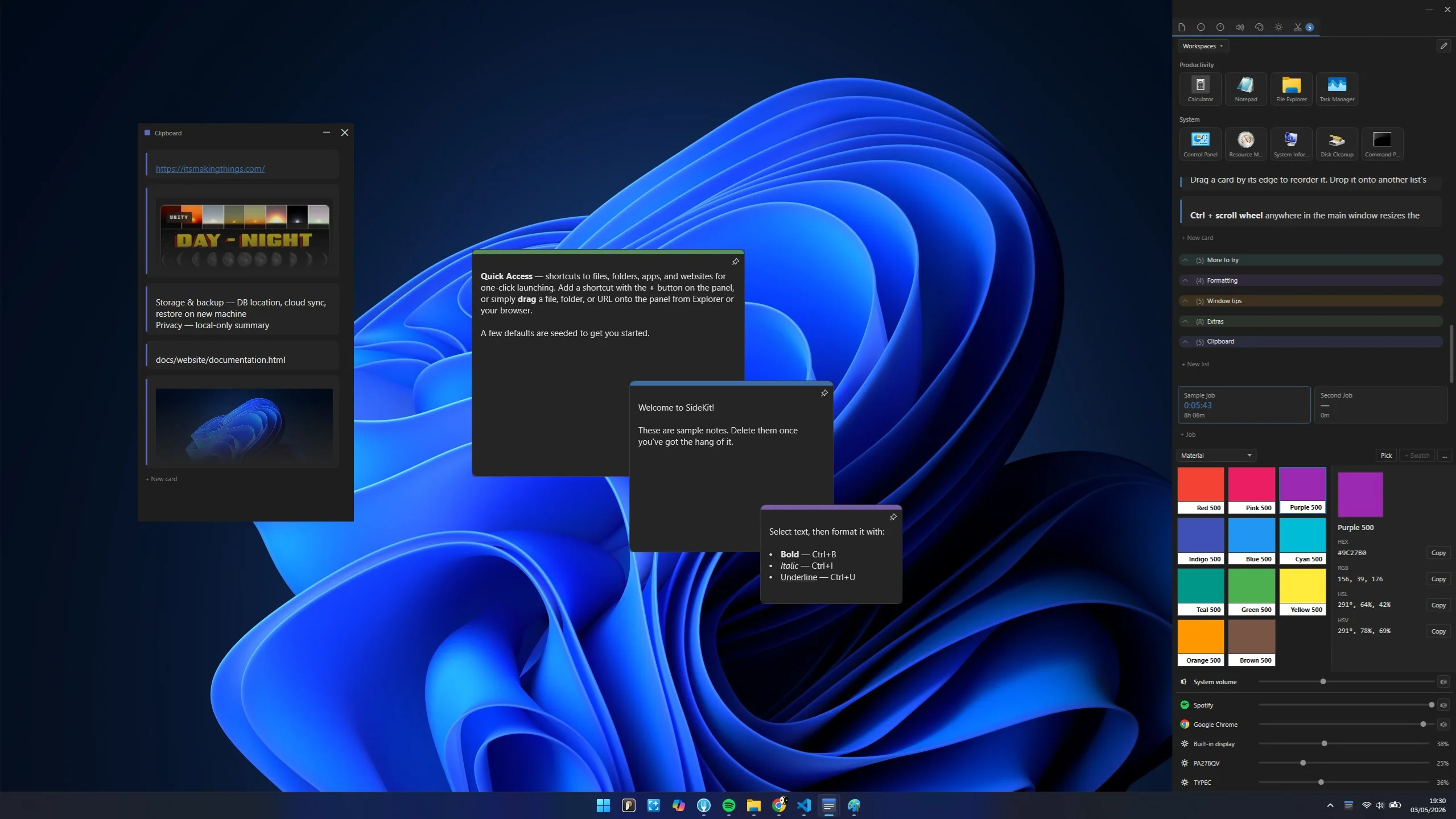
A tray-launched side panel that lives on the edge of your screen. Pop-out sticky notes plus an activity bar of modular tools — clipboard, audio mixer, color palettes, brightness — all one click away from the taskbar.
Tray-launched side panel
Click the SideKit icon in the taskbar tray to show or hide the main window. The panel docks to the edge of your screen and stays out of the way of whatever you're working on. Closing with × just hides it back to the tray; right-click for quick actions.
Activity bar of modular tools
A single row of tabs at the top or bottom of the panel — notes, clipboard, audio mixer, brightness, colors, quick access — each toggling in or out of view independently. The window auto-resizes to fit whatever is open, so SideKit only takes the space you're actually using.
Clipboard that captures everything
Every text snippet, screenshot, and pasted image lands in the clipboard list automatically. Click any entry to re-copy it. Pin the ones you want to keep; the rest age out. Password managers and apps marked as sensitive are skipped automatically.
Material color picker
A built-in palette of Material 500-weight swatches for grabbing color values without breaking out a separate tool. Pick or search; copy the hex straight into whatever you're building.
Per-app audio mixer
System volume plus a slider per running app — Spotify, Chrome, your DAW, your build's audio source — without diving through Windows' volume mixer dialogs. Adjust on the fly while a meeting or stream is live.
Per-display brightness control
A slider per connected monitor — laptop panel, external displays, the second one you sometimes forget you plugged in — driven directly by each screen's DDC/CI controls. Adjust without hunting through OSD buttons or the Windows display settings.