

Welcome
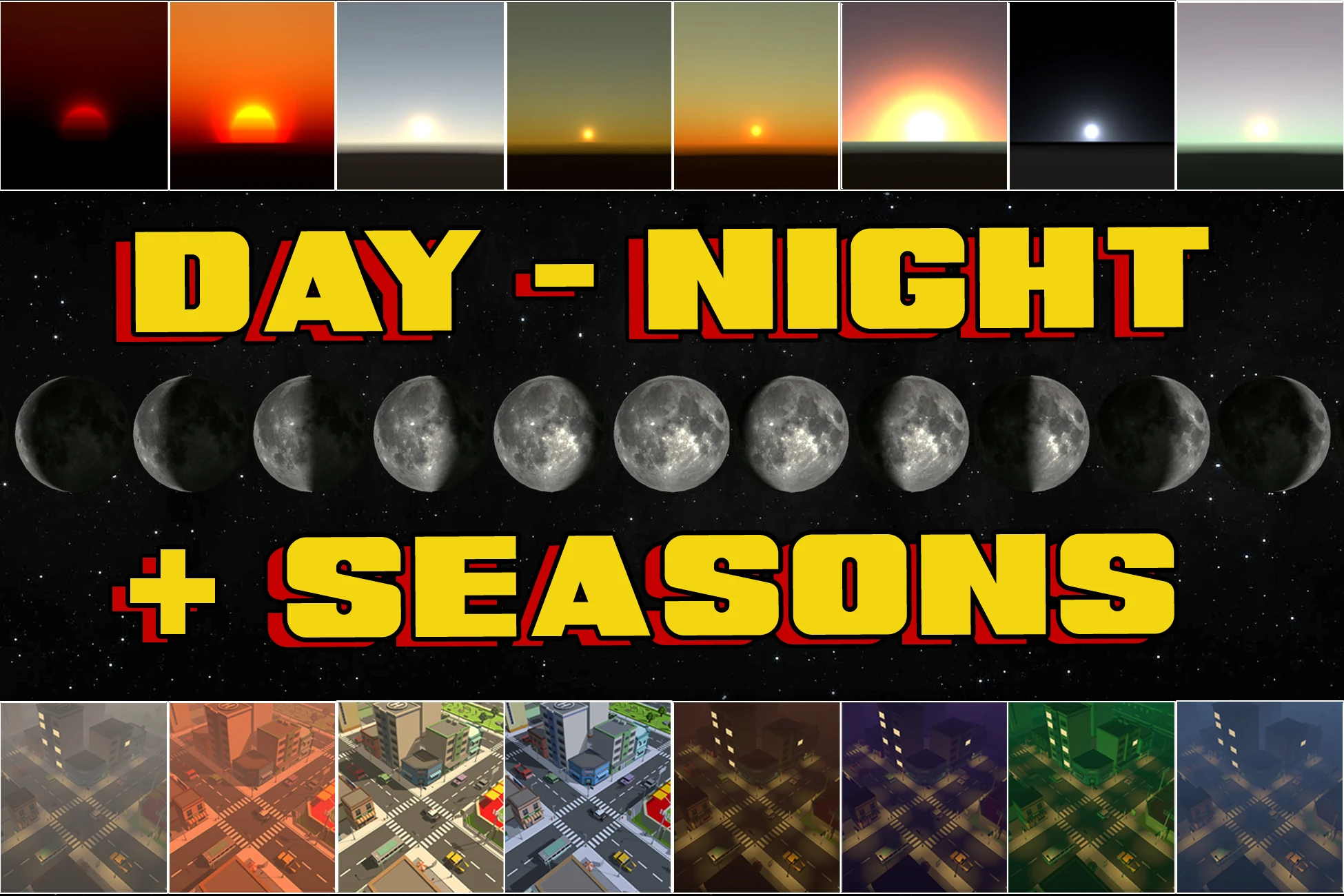
Thank you for using the Advanced Day-Night-Seasonal-Sky System. This package provides a complete time-of-day, seasonal blending, skybox management, sun/moon motion, and environmental lighting solution for Unity.
The system is designed to be:
- Artist-friendly (intuitive presets and inspector fields).
- Technically robust (clean API, optimized shaders, editor tooling).
- Flexible for stylized or realistic projects.
- Compatible with the Built-in Render Pipeline and URP.
Most properties include inspector tooltips, and a ready-to-use prefab called Day-Night-Seasons_Controller is included. You can drag this into your scene and start tweaking immediately, or open the Scene_Demo scene included with all features set up with demo assets.
Note on URP
If you are using URP, please ensure your Pipeline Asset is using the Universal Renderer (Forward). This tool requires 3D lighting and will not render correctly if the 2D Renderer is active.
Quick Start
This section assumes the Built-in Render Pipeline or URP.
1. Add DayNightCycle to a scene
- Create an empty GameObject and add the
DayNightCyclecomponent. - Assign the following references in the inspector:
- Sun Light: your main Directional Light.
- Rotation Pivot: an empty child used to rotate the sun around the scene.
- Scene Camera: usually your main camera.
2. Time settings
- Set Game Minutes Per Second to control how fast time advances.
3. Choose a skybox mode
Under the Skybox section choose one of:
- Procedural: Unity’s procedural sky.
- Single Cubemap: a single cubemap plus optional rotation.
- Dual Cubemap (Built-in): blend between day and night cubemaps, with optional seasons.
- Custom Material: your own skybox material driven by properties.
4. Assign a Seasonal Profile (recommended)
A SeasonalProfile asset contains all season-based settings:
- Lighting, exposure and tint.
- Day/night windows and transition edges.
- Fog parameters.
- Star and moon visibility.
- Per-season cubemaps for Dual Cubemap mode.
Use one of the included presets or create your own from the Create menu. If you want to revert a preset to the default state, just remove it and re-import it from the context menu.
5. Preview your changes
Change the Start Time Of Day to see the environmental conditions based on the Days Per Year and the Current Day. In the Editor you can:
- Scrub time of day.
- Change day-of-year to see seasonal changes.
- Use the Sky Visualizer window for a 360° preview of the sky.
Inspector Overview (DayNightCycle)
This section mirrors the DayNightCycle inspector and the fields defined in DayNightCycle.cs. Exact labels may differ slightly depending on your Unity version and theme.
Time
- Start Time of Day: Initial time when the scene starts (0-24 hours). This updates the environment in real-time.
- Game Minutes Per Second: Number of in-game minutes that pass per real-time second. Example: 60 ≈ 1 in-game hour per real-world second.
Reset
The reset system lets you smoothly move time to a new value using different modes:
- Time-Based: The reset transition completes in a fixed duration. Higher values complete faster.
- Speed-Based: The reset transition completes at a fixed rate/speed. Higher values complete faster.
- Reset Speed: Speed control for the two Reset Modes.
Sun & Scene
- Sun Light: Main directional Light used as the sun.
- Rotation Pivot: Transform that is rotated to move the sun across the sky.
- East-West Rotation: Yaw offset applied to the sun’s path. This is useful for aligning sunrise and sunset with your environment or art direction.
- Scene Camera: Camera used for sky tint and no-parallax behaviour of celestial bodies.
Skybox
This section controls which skybox system is used.
- Skybox Mode
- Procedural. Uses Unity’s built-in procedural skybox.
- Single Cubemap. Uses a fixed cubemap and optional rotation.
- Cubemap Blend. Blends between day and night cubemaps, with optional seasonal blending and advanced blending control.
- Custom Material. Uses a custom skybox material that you provide.
- Procedural Skybox Material: Optional override for Unity’s default procedural skybox material.
- Single Cubemap Material: Material used for Single Cubemap mode.
- Cubemap Blend Material: Material used for Cubemap Blend mode.
- Custom Skybox Material: Material used in Custom Material mode.
- Drive Custom Properties: When enabled, the system will drive blend, exposure, rotation and tint properties on the custom material using the property names configured below.
- Property Names: Fields like
_TexDay,_TexNight,_Blend,_Exposureand_Rotationcontrol which material properties are driven at runtime. - Support Cubemap Rotation: When enabled, the system can rotate the cubemap in Single Cubemap mode.
- Skybox Rotation Multiplier / Offset: Control how the sun’s X arc maps to cubemap yaw rotation.
- Sky Tint Color Space: Choose between Linear and Gamma to match your project. This affects how sky tint colours are converted when applied to the skybox. Use Linear for most projects; Gamma can help if tints appear too dark or saturated.
Sun Disk
- Use Sun Disk: Toggles a stylized sun disk overlay. You may want to disable this when using cubemaps unless you have a custom shader designed to create bloom and other glow effects around the disk.
- Sun Shadow Resolution: Overrides the sun light’s shadow map resolution for better quality at key times of day.
Seasonal System
- Live Update Profile: Instantly applies changes made to the seasonal profile scriptable objects.
- Seasonal Profile: Reference to a
SeasonalProfileasset that contains per-season settings. - Days Per Year: Number of in-game days per full seasonal loop.
- Current Day Of Year: Current day index (1-based). Changing this will blend between seasons.
Celestial Bodies
- Celestial Bodies Container: Transform that will follow the camera position when No Parallax is enabled, preventing parallax for stars and other distant objects.
- Stars GameObject: Object (often a particle system or mesh) used for the star field.
- Use Moon: Toggles the moon system on or off.
- Moon GameObject: Visual representation of the moon.
- Moon Rotation Pivot: Pivot used for the moon’s orbit path.
- Moon Orbital Days: Number of in-game days for the moon to complete one orbit.
- Lunar Phase Days: Number of in-game days for a full moon phase cycle (new to full and back).
- Moon Orbit Radius: Distance from the pivot to the moon.
- Moon Orbit Axis: Y-axis rotation offset for the moon’s orbit plane.
- Base Inclination: Final inclination = Base Inclination + Seasonal Profile Offset. Use Base Inclination to set a global value, then use the Offset property in the Seasonal Profile to apply variations through the seasons.
Fog
- Enable Fog Control: When enabled, the DayNightCycle applies fog settings from the SeasonalProfile to Unity’s
RenderSettings.fogproperties as time of day and season change. Note: you must enable Fog in Unity’s Render settings to use this feature.
Water
- Water Renderer: Renderer whose material will be tinted over time (for example, a water surface).
- Water Color Property: Name of the colour property on the water material to control (for example,
_BaseColor).
UI
These fields are optional and only used if you want to display time and date in your UI.
- Time Text: A Text or TextMeshProUGUI component that will receive formatted time.
- Date Text: A Text or TextMeshProUGUI component that will receive formatted date/day-of-year.
Seasonal Profiles (Authoring)
A SeasonalProfile asset defines season-specific lighting, cubemaps, and timing windows. The DayNightCycle reads from this asset using the current day of year and blends between seasons. Enable Live Update in Editor to see changes applied in real-time.
Seasons
You can configure up to four seasons (Spring, Summer, Autumn, Winter). Each season stores unique values for different times-of-day (sunrise, midday, sunset, and night):
- Exposure and ambient tint.
- Fog colour and density.
- Sky tint and other modifiers.
- Day/night transition hours.
- Shadow window (on/off) times.
- Stars and moon visibility windows.
- Cubemap assignments for Dual Cubemap mode.
Day/Night Windows
For each season you can specify:
- Dawn start and end hours.
- Daylight (or “noon”) window.
- Dusk start and end hours.
- Night start and end hours.
- Optional blend minutes for smoother transitions.
These windows drive curve-based interpolation inside DayNightCycle and control how lighting changes through the day. For example, shadow strength can ramp up at sunrise and ramp down at sunset.
Fine-Tuning
Similarly to the Day/Night Windows, Shadows, Stars, and the Moon can be driven by curve-based interpolation. This prevents shadows pointing ‘upwards’ after sunset and prevents night being a blend of ‘Sunset’ and ‘Night’ values. These properties are important to how transitions between night and day happen.
Stars and Moon Windows
SeasonalProfile also defines when stars and the moon are visible and how bright they are. You can:
- Disable stars entirely for certain seasons.
- Make the moon brighter in winter.
- Change glow and fog influence over seasons.
Cubemap Sets
Cubemap Blend mode uses the SeasonalProfile’s cubemap references:
- Day Cubemap (
TexDay). - Night Cubemap (
TexNight).
Optionally additional textures like TexDay2 and TexNight2 can be used for extended blending across multiple seasons.
Presets
The package includes multiple ready-made SeasonalProfiles such as Arctic, Balanced, Cyberpunk, Desert, Ethereal and more. You can use these as-is or duplicate and tweak them for your own project.
Skybox Modes (Details & Tips)
The system supports four primary skybox modes. These are selected in the DayNightCycle inspector.
Procedural
Uses Unity’s built-in procedural skybox.
- Great for quick realistic lighting setups.
- Sky tint, exposure and sun direction are driven by DayNightCycle.
- You can assign your own procedural skybox material, or fall back to Unity’s default.
Single Cubemap
Uses a single cubemap for the sky.
- Ideal for stylized scenes or environments with baked skyboxes.
- Optional cubemap rotation lets you tie the sky’s yaw to the sun position via a multiplier and offset.
Cubemap Blend
Blends between a day cubemap and a night cubemap.
- SeasonalProfile provides the per-season cubemap sets.
- DayNightCycle computes the blend factor based on time of day and season.
- Optional season blending lets you transition between different cubemap pairs as the year advances.
Custom Material
Uses your own skybox material and shader.
- The system can drive properties such as day tex, night tex, blend, exposure, rotation and tint.
- Property names are configurable to match your shader.
- This mode gives maximum flexibility for HDRP, stylized skies or third-party skybox shaders.
The included custom shader is for demonstration purposes only.
Tips
- For performance-sensitive projects, prefer Procedural or Single Cubemap modes.
- For stylized games that need strong day/night and seasonal art direction, use Dual Cubemap or Custom Material.
Stars & Moon
The Stars and Moon systems are controlled by DayNightCycle plus settings from the SeasonalProfile and the dedicated shaders for stars and moon.
Stars
- Controlled by stars GameObject and its Renderer.
- Visibility is driven by seasonal windows and time-of-day.
- Brightness and tint can be modulated per season.
- Fog influence can be used to soften stars as fog increases.
A coroutine is used internally to handle particle-system initialization issues, ensuring that visibility changes are applied reliably even when particle systems are created at runtime.
Moon
The moon system simulates both orbital motion and lunar phases.
- Orbital Days: How many in-game days it takes for the moon to complete an orbit around the scene.
- Lunar Phase Days: How many in-game days it takes to cycle through all phases (new moon to full moon and back).
- Orbit Radius: Distance from the pivot to the moon object.
- Orbit Axis: Y-axis rotation offset for the orbit plane; useful to tilt the orbit relative to the sun.
- Seasonal brightness and tint: Configured in the SeasonalProfile. The custom Moon shader supports properties such as tint, brightness, glow, fog influence, shadow colour and shadow brightness. These allow you to create anything from subtle stylized moons to highly dramatic, glowing moons.
Sky Visualizer (Editor Tool)
The Sky Visualizer is an Editor-only tool that provides a 360-degree preview of the sky using a cubemap capture and a conversion shader. Open it via Window › Day Night Cycle › Sky Visualizer or via the button in the DayNightCycle inspector.
How it works
- A hidden camera is created and configured with a Skybox component and the appropriate culling mask.
- The camera renders to a cubemap RenderTexture.
- A custom shader (
Hidden/CubemapToCircular) converts the cubemap to a 2D circular texture. - The circular texture is drawn inside the Sky Visualizer window, with optional gizmos on top.
Controls
- Auto-Update: When enabled the visualizer performs periodic preview renders while the application is playing and time is advancing. This gives you a live sky preview.
- Refresh: When Auto-Update is disabled a Refresh button is shown. Use this to manually update the preview.
- Update Rate: Controls how frequently Auto-Update captures the sky. Lower values mean smoother updates but higher editor cost.
- Show Gizmos: Toggles overlay drawing of sun path, moon position, compass and other helpful markings.
- Resolution: Selects the cubemap and preview resolution (256-2048). Higher values improve visual fidelity but increase GPU cost and memory usage.
- Culling Layers: Choose which layers are captured in the preview. You can restrict this to sky-only layers or include selected environment layers.
Performance Notes
- The visualizer is Editor-only and does not affect builds.
- To avoid excessive allocations the window reuses RenderTextures and the conversion material, recreating them only when necessary.
- Auto-Update is only active while playing and when time is running. In edit mode you generally use manual refreshes or inspector-driven refresh calls.
Orbital Objects
OrbitalObject is a component that allows any object to orbit around a pivot based on the DayNightCycle time.
Core Properties
- Day Night Cycle: Reference to the DayNightCycle component whose time is used.
- Orbit Pivot: Transform that acts as the centre of the orbit. If null, world origin is used.
- Orbital Period (Days): Number of in-game days for one complete orbit.
- Orbit Radius: Distance from pivot to the object.
- Orbital Inclination: Tilt of the orbital plane (0 = equatorial, 90 = vertical like a ferris wheel, 180 = inverted).
- Orbital Rotation: Rotation of the orbital plane around the Y-axis.
- Orbital Offset: Offset angle for the starting orbital position.
Advanced Settings
- Eccentricity: Enables elliptical orbits. Higher values produce more elongated ellipses.
- Face Movement Direction: When enabled, the object rotates to face the direction of motion along its orbit.
- Face Orbit Center: When enabled, the object always faces the orbit centre. If both options are enabled, “Face Movement Direction” will take priority.
- No Parallax: When enabled the object’s position is offset to follow a target camera, eliminating parallax. This is useful for distant satellites or sky objects that should feel infinitely far away.
- Target Camera: Camera to follow when No Parallax is enabled. If left null, the component will try to find a main camera or scene view camera.
Editor Visualization
The OrbitalObjectEditor draws helpful handles in the Scene view:
- A wire disc at the current position.
- A line from the pivot to the object.
- Optional orbit path and colour when Show Orbit Path is enabled.
- During play mode it can also display the current orbital angle and progress as labels.
Lighting Controller Example
The LightingController example component automatically controls scene lights and emissive materials based on the DayNightCycle time. It supports flicker effects, random delays, warm-up detection, and gradient-based random color assignment.
Core Properties
- Day Night Cycle: Reference to the DayNightCycle that drives lighting transitions.
- Lights: Array of Light components to control.
- Lights On/Off Time: Time-of-day window when lights should be active (supports midnight wrap-around).
- Light Flicker Count: Number of flickers that occur the first time a light turns on.
- Light Randomness: Maximum random delay (in game-time seconds) before each light turns on/off.
- Light Color Gradient: Random color assigned from this gradient at initialization.
- Emissive Renderers: Renderers using emissive materials to control.
- Emissives On/Off Time: Time-of-day window when emissives should glow.
- Emissive Flicker Count: Flicker effect when emissives first activate.
- Emissive Randomness: Randomized per-renderer turn-on/off delays.
- Emissive Color Gradient: Gradient used to assign emissive color variations.
- Emission Brightness: Master multiplier applied to emissive intensity.
Advanced Behaviour
- Warm-Up Detection: On scene start, all lights/emissives instantly match the correct state for the current in-game time (no flicker or delay).
- Game-Speed Aware Timing: Random delays scale with
GameMinutesPerSecond, keeping behaviour consistent at any time speed. - MaterialPropertyBlock Use: Emissives are updated without instantiating materials, enabling large batches efficiently.
- Per-Object State: Each light/emissive tracks its own color, delay, flicker state, and target brightness.
Editor / Runtime Utility
ForceAllLightsOn / Off. Instantly toggles all controlled lights.ForceAllEmissivesOn / Off. Instantly toggles emissive materials.ClearAllLights / ClearAllRenderers. Quickly reset arrays for cleanup or reconfiguration.
Runtime Time Control
The package includes example runtime UI to control time. These are simple scripts that call public methods on DayNightCycle and can be customized to your own UI framework.
Common capabilities
- Jump to a specific hour (for example 00:00, 09:00, 18:00).
- Pause and resume time.
- Change time speed (fast-forward or slow motion).
- Reset the cycle to the configured start time.
- Display current time and date text.
Typical API calls
SetToCustomTimeInstant(float hour). Immediately move the system to a specific hour using the current seasonal context.SetTimeSpeed(float minutesPerSecond). Adjust time speed at runtime.PauseTime()andResumeTime(). ToggleIsTimeRunning.ResetToStartTime(). Reset time back to Start Time of Day using the configured reset mode.
Performance Characteristics
DayNightCycle itself is lightweight:
- It performs simple math to update sun and moon positions.
- It updates lighting and skybox parameters once per frame.
- Most heavy work is done in shaders that run on the GPU.
Skybox mode tips
- Procedural and Single Cubemap modes are generally the cheapest.
- Dual Cubemap and Custom Material modes depend on the complexity of your shaders.
Sky Visualizer
- The visualizer uses
RenderToCubemapandGraphics.Blit, which are more expensive operations. Because it is Editor-only, this cost does not affect builds. - To keep the editor responsive, prefer moderate resolutions (512-1024) and avoid extremely low update intervals.
- In edit mode, rely on manual or inspector-driven preview refreshes when possible.
Memory
- RenderTextures are created once and resized only when resolution changes.
- Materials created for preview are destroyed when the window is closed or reinitialised.
- The system avoids redundant allocations where possible to minimize GC pressure.
Public API Reference (Summary)
The following is a high-level summary of commonly used public API members. Refer to the source code for full details.
DayNightCycle (MonoBehaviour)
float TimeOfDay { get; }. Current time in hours (0-24).int CurrentDayOfYear { get; }. Current day index (1-based).bool IsTimeRunning { get; }. True if time is currently advancing.void SetToCustomTimeInstant(float hour). Immediately updates lighting and skybox to a specific hour.void ResetToStartTime(). Resets time back to Start Time of Day using the configured reset mode.void PauseTime(). Stops time progression.void ResumeTime(). Resumes time progression.void SetTimeSpeed(float minutesPerSecond). Sets the rate at which in-game minutes pass.
OrbitalObject (MonoBehaviour)
void UpdatePositionInEditMode(). Recomputes the orbit position in edit mode; used by the custom editor.float CurrentOrbitalAngle { get; }. Current orbital angle in degrees.float OrbitProgress { get; }. Progress through the orbit (0-1).
SeasonalProfile (ScriptableObject)
Provides a set of getter methods for per-season data, such as:
GetExposure(int seasonIndex)GetFogColor(int seasonIndex)GetShadowOnHour(int seasonIndex)GetShadowOffHour(int seasonIndex)GetStarVisibility(int seasonIndex)GetMoonBrightness(int seasonIndex)
…and similar functions used internally by DayNightCycle.
Editor Tooling
Several custom editors are provided:
DayNightCycleEditor. Organizes the inspector into foldouts and provides quick actions.SeasonalProfileEditor. Custom editor for SeasonalProfile assets.OrbitalObjectEditor. Enhanced inspector and scene handles for OrbitalObject.SkyVisualizerWindow. Editor window for 360-degree sky preview.
These tools are designed to work together but are optional; you can still drive the core system via script.
Blending Patterns. How to view a specific time of the year
Use these day numbers when using the ‘Set’ button to visualize during creative development.
2 seasons over 200 days
- Days 1-100 (First Half of Year):
- Day 1: 100% Season 1, 0% Season 2
- Day 50: ~50% Season 1, ~50% Season 2
- Day 100: ~1% Season 1, 99% Season 2
- Days 101-200 (Second Half of Year):
- Day 101: 0% Season 1, 100% Season 2
- Day 150: ~50% Season 1, ~50% Season 2
- Day 200: ~99% Season 1, 1% Season 2
3 seasons over 200 days
Each season gets ~66.67 days. The system blends continuously through all 3 seasons:
- Days 1-67. Season 1 → Season 2
- Days 68-133. Season 2 → Season 3
- Days 134-200. Season 3 → Season 1 (cyclic)
4 seasons over 200 days
Each season gets 50 days. Classic seasonal pattern:
- Days 1-50. Spring (Season 1)
- Days 51-100. Summer (Season 2)
- Days 101-150. Autumn (Season 3)
- Days 151-200. Winter (Season 4) → back to Spring (cyclic)
Key Pattern
The system always blends between only 2 adjacent seasons at any given time:
- 3 seasons: S1↔S2, then S2↔S3, then S3↔S1 (cyclic)
- 4 seasons: S1↔S2, S2↔S3, S3↔S4, S4↔S1 (cyclic)
Troubleshooting
Shadows look floating or low quality?
URP Shadow settings are global and unique to every project, so we cannot set them for you automatically.
To fix Peter-Pan (floating) shadows:
- Select your active URP Asset (Project Settings › Graphics).
- Set Shadow Normal Bias to 0.4 or lower.
- Set Shadow Distance to 150+.
A reference configuration is included in the DemoSettings folder if you wish to see an example setup.
Pink Materials in URP
If you see magenta/pink materials in the Demo Scene after importing, the automatic conversion (DemoMaterialAutomator.cs) may have been interrupted. Please follow these manual steps:
- Go to the top menu: Window › Rendering › Render Pipeline Converter (or Edit › Render Pipeline › Universal Render Pipeline in older versions).
- Select Material Upgrade mode.
- Check the boxes for the affected materials and click Initialize and Convert.
Sky appears black
- Check that a supported skybox mode is selected and that required materials or cubemaps are assigned.
- For Dual Cubemap mode, ensure that the SeasonalProfile contains valid day and night cubemaps.
- Confirm that your sun light is assigned and enabled.
- URP: ensure your Pipeline Asset is using the Universal Renderer (Forward). This tool requires 3D lighting and will not render correctly if the 2D Renderer is active.
Moon does not appear
- Ensure Use Moon is enabled and a valid Moon GameObject is assigned.
- Check that the moon is on a visible layer and within the camera frustum.
- Verify that lunar visibility and brightness in the SeasonalProfile are not set to zero.
Stars are missing
- Confirm that the Stars GameObject is assigned and its Renderer is enabled.
- Make sure seasonal star brightness is greater than zero.
- Check that fog settings are not overwhelming stars, especially in heavy fog scenarios.
- Ensure they are not further than the camera’s ‘far’ clipping plane.
Shadows are low quality
- Check the Shadows section in the Project Settings’ ‘Quality’ tab.
- Check the Shadow settings on the Directional Light source (the Sun). Adjust the Normal Bias and other settings to remove banding in the shadows.
Skybox rotation feels wrong
- Adjust East-West Rotation to align sunrise and sunset with your environment.
- Use Skybox Rotation Multiplier and Offset to fine-tune how the skybox rotates in Single or Dual Cubemap modes.
Sky Visualizer seems slow or spams warnings
- Lower the preview resolution.
- Keep the update interval at or above 0.05 seconds for smoother editor performance.
Lighting or fog do not match expectations
- Verify that Enable Fog Control is set correctly for your project in Lighting settings.
- Double-check the SeasonalProfile values for the current season and time of day.