

Introduction
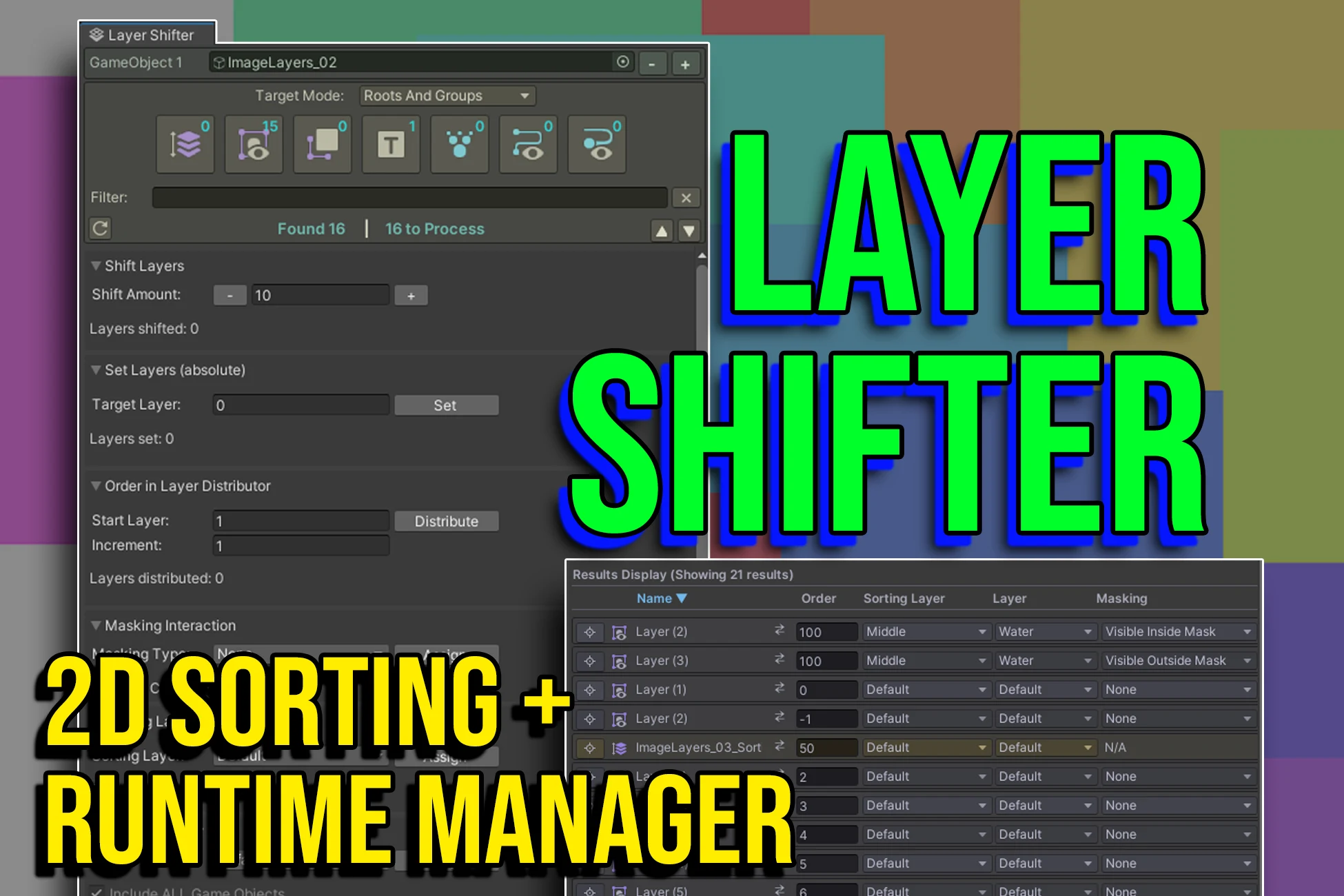
Layer Shifter is a powerful Unity Editor extension designed to eliminate the headache of managing Sorting Orders, Sorting Layers, GameObject Layers, and Sorting Groups.
Whether you are working on a complex 2D scene with hundreds of sprites, a UI canvas with mixed particle effects, or simply need to organize your project’s hierarchy, Layer Shifter provides a centralized dashboard to visualize, edit, and automate these settings in bulk.
It fully supports Prefab Mode workflows and includes a robust Runtime Trigger system for creating dynamic depth effects like bridges and tunnels.
Installation
- Import the Layer Shifter package into your project.
- The tool is ready to use immediately.
- Open the window via Tools › itsMakingThings › Layer Shifter.
Quick Start
- Select Objects: Drag GameObjects from your Hierarchy into the “GameObject” slots at the top of the window, or lock your selection.
- Filter: Toggle which component types you want to affect (Sprites, Text, Particles, etc.) using the icons at the top.
- Visualize: Scroll down to the “Results Display” to see a spreadsheet-like view of every renderer found.
- Edit: Use the “Layer Shifter” foldout to add/subtract sorting orders in bulk, or use the “Distribute” tool to instantly fix z-fighting by incrementally sorting children.
Key Features
Selection & Filtering
- Multi-Object Editing: Add multiple target GameObjects to process distinct parts of your hierarchy simultaneously.
- Target Modes: Located above the filter icons, this dropdown controls how the tool handles complex hierarchies:
- Roots & Groups (default): Treats objects with Sorting Groups as sealed containers. Shifting a character moves the Group sorting, keeping the character’s internal layering intact. Recommended for general use.
- All Renderers: Drills down to modify every individual child renderer. Use this for “rigging” or fixing internal z-fighting within a single character.
- Component Filters: Specific toggles for Sorting Groups, Sprite Renderers, TextMeshPro, Particle Systems, Sprite Masks, Line Renderers, and Trail Renderers.
- Smart Search: Filter the results list by name to isolate specific elements (e.g., search “Enemy” to only edit enemy sprites).
Layer Shifter (Relative Adjustment)
- Add or subtract a specific value from the current “Order in Layer” of all selected objects.
- Use Case: Move an entire character “forward” by 10 sorting orders without losing the relative sorting of their individual body parts.
Layer Setter (Absolute Adjustment)
- Force all selected objects to a specific “Order in Layer” value.
- Use Case: Flattening a background layer to Order 0.
Layer Distributor (Incremental Sorting)
- Recursively assigns “Order in Layer” values starting from a base number and incrementing for each child object found.
- Use Case: Instantly fixing z-fighting on a stack of cards or a complex character rig by ensuring every sprite has a unique, ascending sort order.
Masking Interaction Control
- Bulk change how sprites interact with Sprite Masks (Visible Inside, Visible Outside, or None).
Sorting Layer & GameObject Layer Assigners
- Sorting Layers: Bulk reassign renderers to “Foreground”, “Background”, etc.
- GameObject Layers: Bulk reassign the physics/rendering Layer (e.g., “UI”, “Water”) for objects and their children recursively.
The Results Display Table
- Hierarchy Visualization: Objects with Sorting Groups are highlighted in Gold for easy identification. Child renderers belonging to a group are visually indented, giving you a clear view of your sorting structure.
- Live Editing: Change Sorting Layers and Orders directly in the list.
- Scrubbable Controls: Click and drag the
⇄icon next to any object to smoothly adjust its Order in Layer. - Tip: Hold Shift while dragging to snap to increments of 5.
- Sorting: Click column headers to sort the list by Name, Order, or Layer.
Runtime & Logic Triggers
Layer Shifter powers runtime gameplay through two components: The Trigger (Sender) and the Shifter (Receiver).
The Layer Shifter Trigger (Sender). Attach this to any object with a Trigger Collider (e.g., a Bridge, Tree, or Tunnel entrance) to command objects to change layers automatically.
The Runtime Layer Shifter (Receiver). Add this to your moving objects (Players, Cars, etc.) to receive commands.
- Hierarchy Resilient: Automatically detects the
RuntimeLayerShifteron parent objects (e.g., detecting the “Player Root” even if the “Feet Collider” triggered the event). - Directional Logic: Restrict triggers to only activate when entering from specific directions (e.g., “Only Jump if entering from the Left”). This is essential for one-way bridges.
- LayerMask Filtering: Ensure only specific objects (like the Player) trigger the shift, ignoring debris or enemies.
- Unity Events: Hook up Audio, Particles, or custom logic to
OnEnterandOnExitevents directly in the Inspector. - Debug GUI: Toggle “Show Debug GUI” to visualize trigger detection status in the Game View.
- Debug Mode: Check “Enable Debug GUI” on the component to see on-screen buttons for manually testing Shift, Set, and Distribute functions in Play Mode.
API & Scripting
The RuntimeLayerShifter component exposes a full public API, allowing you to manipulate layers via code or Unity Events.
Core Methods
ShiftOrder(int amount). Shifts the sorting order of the object (or its children) by the specified amount.SetOrder(int value). Sets the sorting order to an absolute integer value.DistributeOrder(int start, int increment). Recursively assigns sorting orders to children (e.g., 0, 1, 2, 3…) to fix Z-fighting programmatically.ReassignSortingLayer(string name). Moves the object to a different Sorting Layer (e.g., “Foreground”).ChangeMaskingInteraction(SpriteMaskInteraction mode). Changes how sprites interact with masks (None, VisibleInsideMask, VisibleOutsideMask).
Troubleshooting & FAQ
I clicked “Shift” but my character didn’t move behind the object?
Check your Target Mode dropdown in the Editor Window.
- If your character uses a Sorting Group component, ensure the mode is set to “Roots & Groups”. This shifts the parent group rather than the children.
- If you shift the children but the parent Sorting Group stays at the same value, Unity will override the children’s depth.
My Runtime Trigger isn’t working?
Check the following:
- Collider Type: Ensure the object has a Collider 2D with Is Trigger checked.
- Rigidbody: One of the interacting objects (usually the Player) must have a Rigidbody2D for Unity to detect the collision.
- Layer Mask: Check the Target Layer Mask on the trigger. If it is set to “Nothing”, it won’t detect anything. Set it to “Everything” or specific layers like “Player”.
- Direction: If you are using Directional Logic, ensure you are entering the trigger from the correct side (e.g., entering from the bottom if set to “Up”).
Can I use this with UI (Canvas)?
Yes, but only for World Space Canvases. Screen Space canvases ignore sorting orders. Layer Shifter fully supports TextMeshPro components in World Space.
Why don’t I see the Debug GUI in the Game View?
Ensure “Enable Debug GUI” is checked on the component, and that OnGUI is enabled in your Game View toolbar (the “Gizmos” button sometimes toggles this depending on Unity version).