

Overview
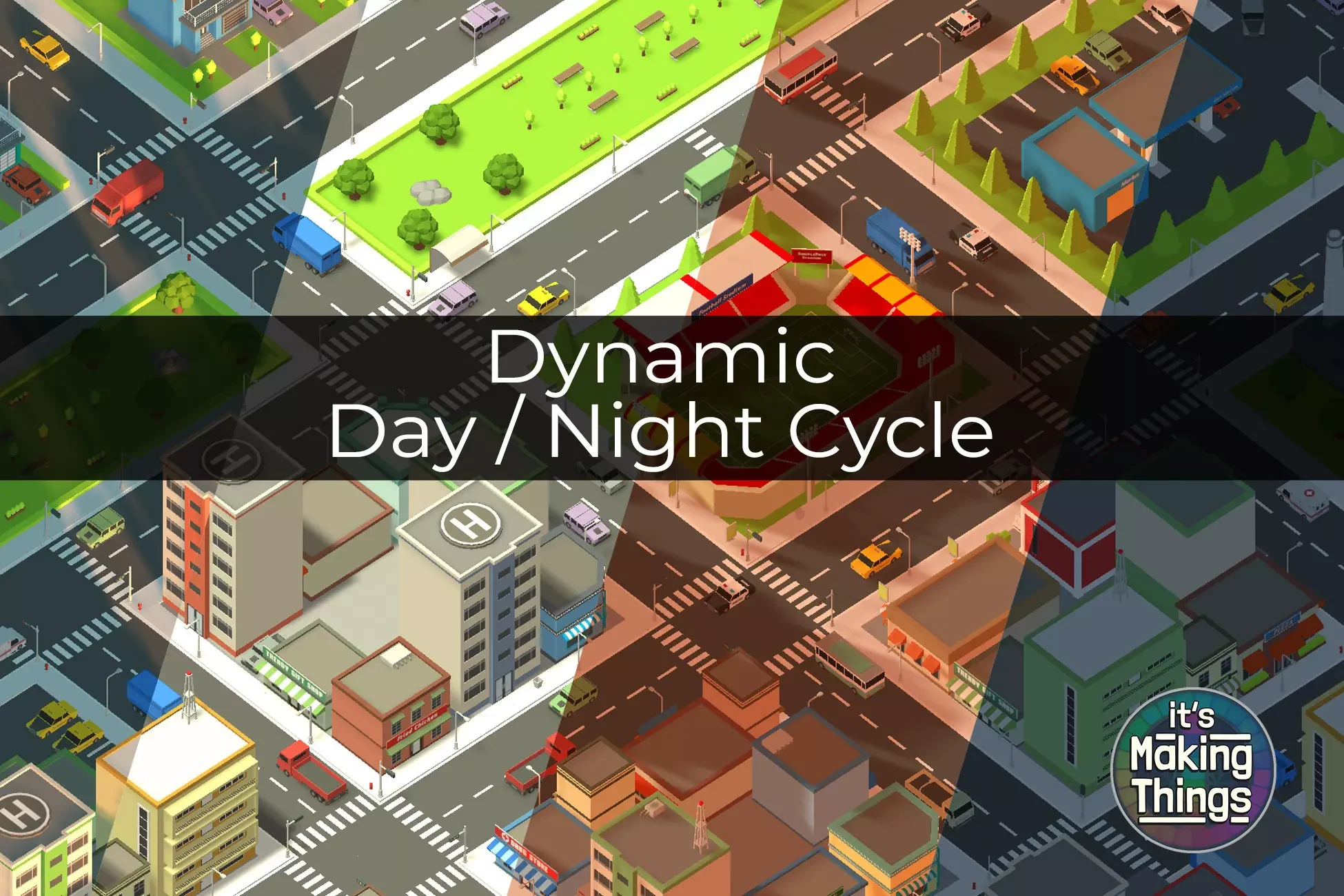
The DayNightCycle component simulates a full day-night lighting cycle in real time, controlling ambient lighting, sun direction, fog, water color, and updating a UI clock.
Supports:
- Smooth time progression
- Manual time setting
- Scene-wide lighting transitions
- Fog and water color blending
- Runtime and editor-friendly workflow
Component Setup
Attach the DayNightCycle.cs script to a GameObject (typically an empty GameObject called DayNightController).
Required assignments
- sunLight: the main directional light representing the sun. This is a child of the rotationPivot.
- rotationPivot: a Transform whose X rotation simulates the sun’s movement.
- sceneCamera: Camera for background color transitions.
- timeText (optional). TextMeshProUGUI object for displaying the in-game clock.
- waterRenderer (optional). Renderer for the water surface.
- waterColorProperty: Name of the water color shader property (
_WaterColorby default). This can be changed to match your specific shader.
Inspector Settings
Time Settings
- startTimeOfDay: Hour of the day at scene start (0-24).
- cycleSpeed: Time progression speed multiplier.
- TimeOfDay (read-only). Current in-game time.
Reset Settings
- resetSpeed: Speed at which time resets smoothly.
- forwardsOnly: Forces time resets to only move forward.
Directional Light Settings
- rotationOffsetY: Y-axis rotation offset for the sun’s path. This lets you control rotation angle in the scene.
Fog Control
- enableFogControl: If true, fog color and density are controlled automatically.
Water Settings
- waterRenderer: Renderer using the water shader.
- waterColorProperty: Shader property controlling water color. This uses MaterialPropertyBlocks.
Lighting Time Settings
Four lighting profiles. Click the buttons at the bottom of the component to set those values:
- Daybreak
- Midday
- Sunset
- Night
Each profile includes:
- ambientColor
- sunColor
- backgroundColor (camera background color)
- sunIntensity
- shadowStrength
- fogColor (if enabled)
- fogDensity
- waterColor
These define the scene’s environmental settings for that time period and automatically blend between them.
Runtime Controls (Public Methods)
Call these methods from other scripts, UI buttons, or events:
| Method | Description |
|---|---|
StopTime() | Pause time progression |
StartTime() | Resume time progression |
ResetToStartTime() | Smoothly reset time to startTimeOfDay |
SetToDaybreak() | Instantly set time to 6:00 |
SetToMidday() | Instantly set time to 12:00 |
SetToSunset() | Instantly set time to 18:00 |
SetToNight() | Instantly set time to 0:00 |
How It Works
- Update(): Increments
_timeOfDaybased oncycleSpeed. - UpdateLighting(): Calculates sun rotation and interpolates environment settings between the two closest time profiles.
- UpdateTimeUI(): Updates the on-screen time display once per minute change.
- ResetTimeSmoothly(): Smoothly interpolates
_timeOfDayover time when called.
Best Practices
- Use
rotationPivotas the parent of the sun light for easier Y-axis control. - If using custom fog or water solutions, disable
enableFogControlor clear thewaterRendererreference. - Keep
cycleSpeedlow for realistic day-night transitions (e.g., 0.05 to 0.2).
Example Setup. Quick Start
GameObject: DayNightController
Attach Script: DayNightCycle
Assign references:
- sunLight → Your main Directional Light (Sun). You can adjust the Y rotation to simulate the Sun’s height at different times of the year.
- rotationPivot → Empty GameObject or the parent of the sun light.
- sceneCamera → Main Camera.
- timeText → TextMeshProUGUI object (optional).
- waterRenderer → Water plane renderer (optional).
For support please contact itsmakingthings@gmail.com.